ReSharper stopped working for a single specific solution

If ReSharper stopped working for a single specific solution (like, there is no Code Analysis, Navigation, Code Inspections, etc.), but works fine for the others, this might indicate that solution specific settings, as well as ReSharper caches are corrupted, and VS with ReSharper cannot rebuild them automatically for some reason.
In order to fix it, please try
- removing a '.suo' file located in "\.vs\{Solution Name}\v{%version%}\" folder for VS2015/VS2017/VS2019/VS2022 or a '{Solution Name}.suo' file next to .sln file for VS2010/2012/2013;
- using the 'Clear Caches' button in "ReSharper | Options | Environment | General" dialog
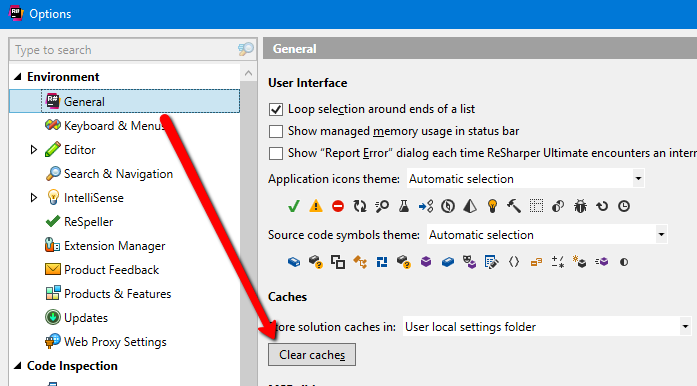
In case you would like to remove ReSharper caches folder manually, you need to check which "caches folder" location is opted for in "ReSharper | Options | Environment | General | Caches | Store solution caches in" dropdown:
- User local settings folder (default one)
"_{SolutionName}.{guid}" folder in %LocalAppData%\JetBrains\Transient\ReSharperPlatformVs{VS_version}\v0X\SolutionCaches
- System TEMP folder
"_{SolutionName}.{guid}" folder in %LocalAppData%\Temp\JetBrains\ReSharperPlatformVs{VS_version}\v0X\SolutionCaches
- Solution folder
"_ReSharper.Caches" folder in the solution folder
- Custom folder
"_{SolutionName}.{guid}" folder in a folder you specified Options
Please sign in to leave a comment.
I'm have same problem about Resharper not working with some file (_Layout.cshtml, Global.asax, _LoginPartial.cshtml, v.v.. )
I have been spent many hours to solve it. This is my solution:
1. In packages.config, comment out this line:
<package id="Microsoft.AspNet.Identity.Samples" version="2.1.0-alpha1" targetFramework="net45" />
2. I think content in "\packages\Microsoft.AspNet.Identity.Samples.2.1.0-alpha1\content" is cause of this error (because it have some file template like as _Layout.cshtml, Global.asax, _LoginPartial.cshtml, these files just use for first install identity sample only.
I hope this helps someone else out
Clear cache didn't work for me (VS2013 Update 5 and Resharper 2016.3.2). I also didn't find any "v0X\SolutionCaches" folders so the manual process in this article doesn't seem apply to the latest version (or clear cache worked and folders were already cleared and resharper still not working in one solution).
:-(
I'm using VS 2017 Community and R# 2017 1.3 on Windows 10 which worked perfectly fine few days ago. And now just for 1 solution it wont R# won't work. I have tried everything in this post. Cleared caches and changed cache locations 4 times. I can do without R# for the time being as it is hampering my progress. R# is supposed to speed this up not bring it to a near halt. >:-(
What else should I try?
I am having the same problem with a single solution using Visual Studio 2017 Update 3 with Resharper 2017.1.3. Clearing caches, cleaning and rebuilding the solution does not work. Resharper intellisense is only providing options from the .Net framework and nothing from the solution. For other solutions it works perfectly. Even more strange is that if i open this same solution in VS 2015 or Rider then Intellisense works perfectly. Problem is that this is a cross platform solution for latest version of UWP so Rider and VS 2015 are not options for me. Now i am stuck using VS intellisense which does not pick up critical Resharper code templates i have built that i need for this solution. This has brought my productivity to really low levels. I really need alternatives to fixing this.
I've had this problem since 2 days now with ReSharper 2019.2.3 version.
I've tried the solution of Omar Venturi (https://resharper-support.jetbrains.com/hc/en-us/articles/206546989/comments/201119395) and i couldn't solve my issue.
My environment is VS2017 having a problem with a particular development of a library inside of my solution. I ran out of idea and it's still not work for me.
Hello Genaro Aguero,
Could you please contact us via "Submit a request" form at the top of the page and describe in detail what actually doesn't work for you.
Please also run Visual Studio with the following command line: 'devenv /ReSharper.LogFile c:\log\resharper.log /ReSharper.LogLevel Verbose', reproduce the issue and send us a corresponding 'resharper_log.txt' file.
Thank you.
This article doesnt solve the problem. I've had intellesense stop working randomly fore a long time with no solution and they pointed me to here. Solution so far is to remove resharper.
I am having the same issue. When opening one solution ReSharper works as expected, but when I open another solution ReSharper will not work. Which is weird, since it has been working for months with the solution that now 'fails'.
Things like Alt+Enter, F6 (refactor), F2 (rename) etc. just do not work, while they do work when loading another solution.
I am using Visual Studio Enterprise 2019 (16.5.1) with JetBrains ReSharper Ultimate 2019.3.4 Build 193.0.20200226.112949 built on 2020-02-26
dotCover 2019.3.20200227.100227
dotTrace 2019.3.20200227.100036
ReSharper 2019.3.20200227.95333
dotMemory 2019.3.20200227.100031
I've tried, multiple times, to clear the cache (both manually as per the 'clear cache' button, reinstalling ReShaper, removing the .suo file. Nothing seems to work...
----
Responding on the comment below:
For me it's the other way round... The .NET Framework 4.8 solution works, the .NET Core version does not.
This fixed it for me: Check if you have git merge conflict markers ("<<<", "===", or ">>>") in your sln or csproj files...
Apparently visual studio is not complaining if this happens, but resharper is not going to work and fail silently.
I have also the same issue. You have to "Reset all Settings" for Visual Studio and Resharper
1) Tools import and Export Settings Wizard => Reset All Settings
2) Extensions => Resharper => Manage Options => Reset All Settings
Restart Visual Shitudio.
Make sure you are using intellisense from Resharper in the Options.
Hi,
A recent update has broken me this feature for all projects. None of the advice helped at all.
But I've noticed one option that was the reason of this issue for me.
You may try to turn off "Env->General->Solution model". Good luck.
Chorny N Thanks, that was it.
For all you lost souls who Google and come across this page.
In case the usual things suggested here don't work (clearing all cache possible), look inside your .sln file.
In my case, a bad git merge resulted in <<<<< HEAD and ===== and >>>>> lines and such. Apparently, Visual Studio deals with it quietly, but it causes Resharper to not "see" your real projects and files.
Once resolved, ReSharper functionality on the solution was working again.
I think I'll also open a ticket for ReSharper to improve visibility of such a case.
If anyone comes here I had this disabled for the one file:
Right click the pause button and resume:
And all will be working as expected.
Chorny N Save my lifetime!
Something if off..
Second and third if conditions should be marked as not reachable..at first I thought that code analysis was not working and tried some of the tips, delete cache, delete cache folder, etc. But then I realized that if I add more if conditions the code analysis eventually starts kicking in, but not in all the places
Chorny N you legend! Would never have found that. Thanks
This is still a bug in 2023.
Clearing the cache did not help; changing to solution folder cache did not help.
Get this message when I click why ReSharper is not available:
Except that is not true, and this is my code. The only thing I can think of is that it doesn't like that it's on a network drive.
For me, i had added projects to the Code Inspection -> Ignored Code -> Projects to Ignore list by accident.
Removing them fixed this issue for me.