Why Does Resharper Default to Installing Into Experimental Instance?

I've been struggling with corruption in VS 2026 that has required me to repair it multiple times. Every time I do that, VS of course forgets about the Resharper extension.
Annoying, but no big deal: just re-run the setup wizard.
But what is a big deal is the setup wizard defaults to “install Resharper into experimental instance”. Which is not something I would >>ever<< have selected, so it must be a default. Which is nuts.
Has anyone else run into this? It's easy to fix…but remembering to have to fix it isn't.
- Mark
Please sign in to leave a comment.
Hi Mark!
This option definitely should not be enabled by default. Could you please tell me, after disabling the option, which button do you click, Save or Back? We have a small usability problem with it, so when you click Back, the settings are not saved.
Hi Alexandra, thanx for the quick reply.
I checked this morning, and the Experimental setting in question is available by clicking Options on the first page of the Setup Wizard. The dialog box that appears only offers Cancel and Apply buttons.
I can confirm that Apply does >>not<< store the revised setting of “don't install to experimental”. In other words, I must deselect the experimental target every time I run the Setup Wizard. Which is annoying :).
Hi Mark,
could you please add some screenshots?
It seems like your Installer might look different from usual. Thanks!
Sure. Here you go.
Hi Mark,
Our investigation shows that the "Install into the experimental instance" checkbox defaults to selected if multiple versions of ReSharper are installed.
Please navigate to %LocalAppData%\Programs in Explorer and check how many "ReSharper Tools" folders exist. If you aren't currently using JetBrains Toolbox, we recommend downloading it to make managing all versions easier. If you don't need additional ReSharper instances, you can remove them through JetBrains Toolbox.
Sorry, but I checked that folder, and there is only one ReSharper Tools folder…but when I run Setup Wizard, it still defaults to install into experimental instance. So that doesn't seem to be the problem/solution.
BTW, I am using Toolbox.
Another odd thing I just noticed is that after Toolbox runs/installs the ReSharper update, I must run the Setup Wizard manually to upgrade the components. FYI, Toolbox ran/installed the update while VS 2026 was running (in case that matters).
Hi Mark,
Could you please attach the installation log files from %LocalAppData%\JetBrains\Shared\vAny\Installer? Because logs may contain personal information, please upload the file to our server and share the ID.
Here you go:
Upload id: 2026_02_26_J7qEi6ksyGcLxxwfFyDdbQ (file: JetBrains Logs.zip)
Hi Mark,
Thanks for sharing the logs. I’ve reviewed them, but the cause remains unclear.
I assume that disabling that checkbox by default requires reinstalling ReSharper Tools. To preserve your settings, you can export them via
ReSharper | Manage Options => "Export to File"in the context menu for each layer. Afterward, uninstall ReSharper Tools from Toolbox, then reinstall it. I think that after reinstallation, the checkbox won't be checked by default, which might also impact integration with VS 2026. You shouldn't need to run the installation wizard repeatedly.Thank you for your understanding!
Sorry about the delay in replying…
What do you mean by “in the context menu for each layer”? I was hoping I could just run Export To File and get everything exported so I could later import it all back.
Hi Mark,
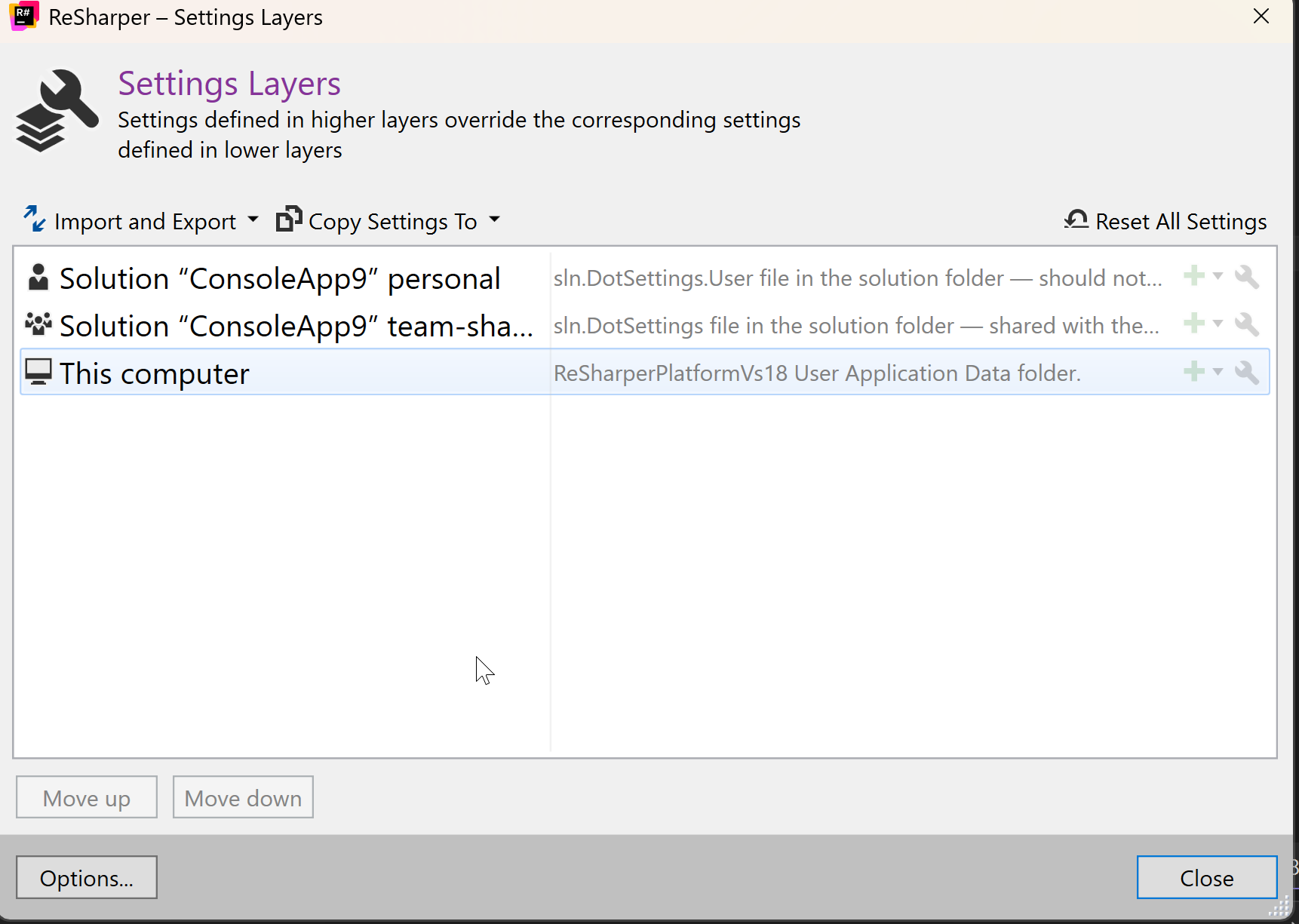
I apologize for the confusion caused by my previous message. When you open ReSharper | Manage Options, you will see three layers: Personal, Team-shared, and This computer.
To back up all settings, right-click on each layer and select "Export to File." If you need to restore settings, right-click on the desired layer, then choose 'Import from' > 'Import from File' and select the appropriate file for the layer.
I hope this explanation is clearer now.
Okay, did an export/uninstall/reinstall/import cycle and the problem seems to be resolved. At least that “install into experimental instance” checkbox is unchecked :). I'll let you know if the next update goes through without needing to re-rerun setup.
Thanx for your help!
You're welcome! If you have any questions or encounter any issues, please don't hesitate to contact us!